What is on the page
- Income
- Take-home pay by paycheck, plus side work and any other money coming in. Use what lands in your bank account, not the gross salary on your offer letter.
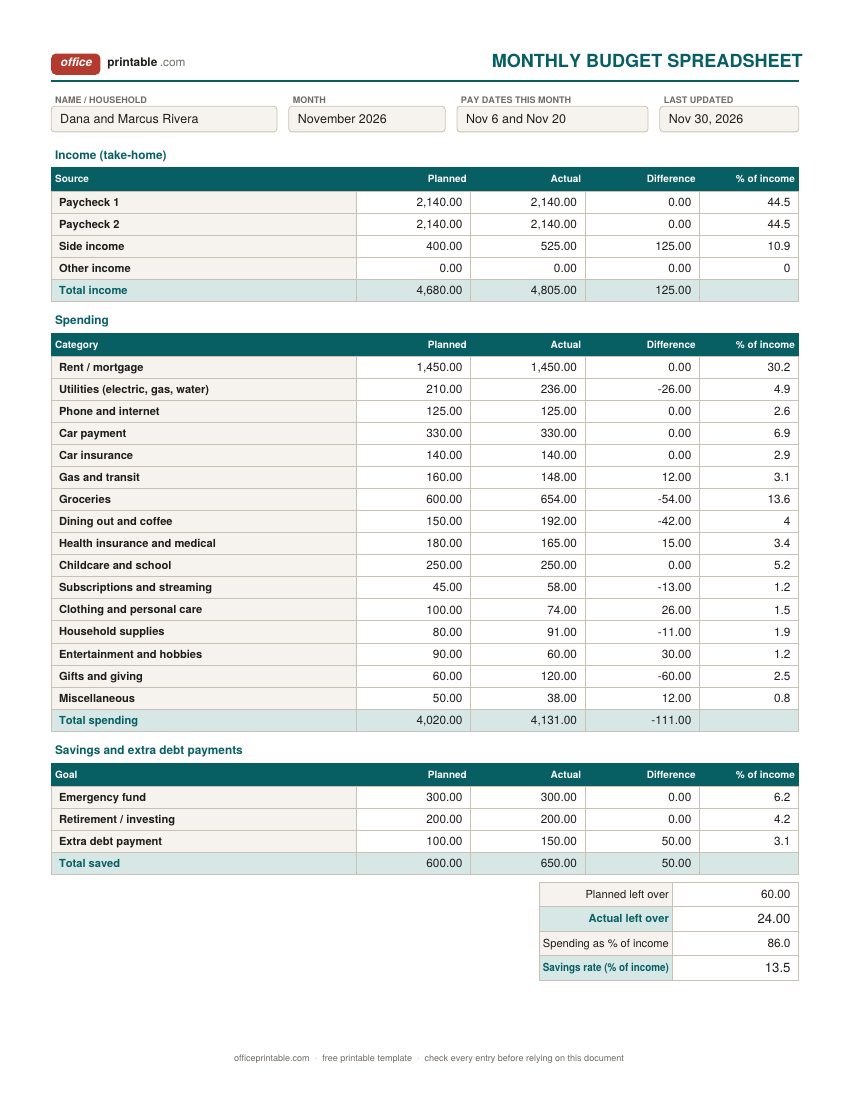
- Planned and Actual
- Planned is the number you set before the month starts. Actual is what really happened, copied from your bank and card statements.
- Difference
- Worked out by Excel. A positive number is always good news: more income than planned, less spent than planned on a category, or more saved than planned.
- % of income
- Each actual amount as a share of your actual total income, rounded to one decimal. It stays blank until there is income to divide by.
- Left over and savings rate
- Income minus spending minus savings, for the plan and for what really happened, and the part of your income that went to savings and extra debt payments.
- Year total and Average
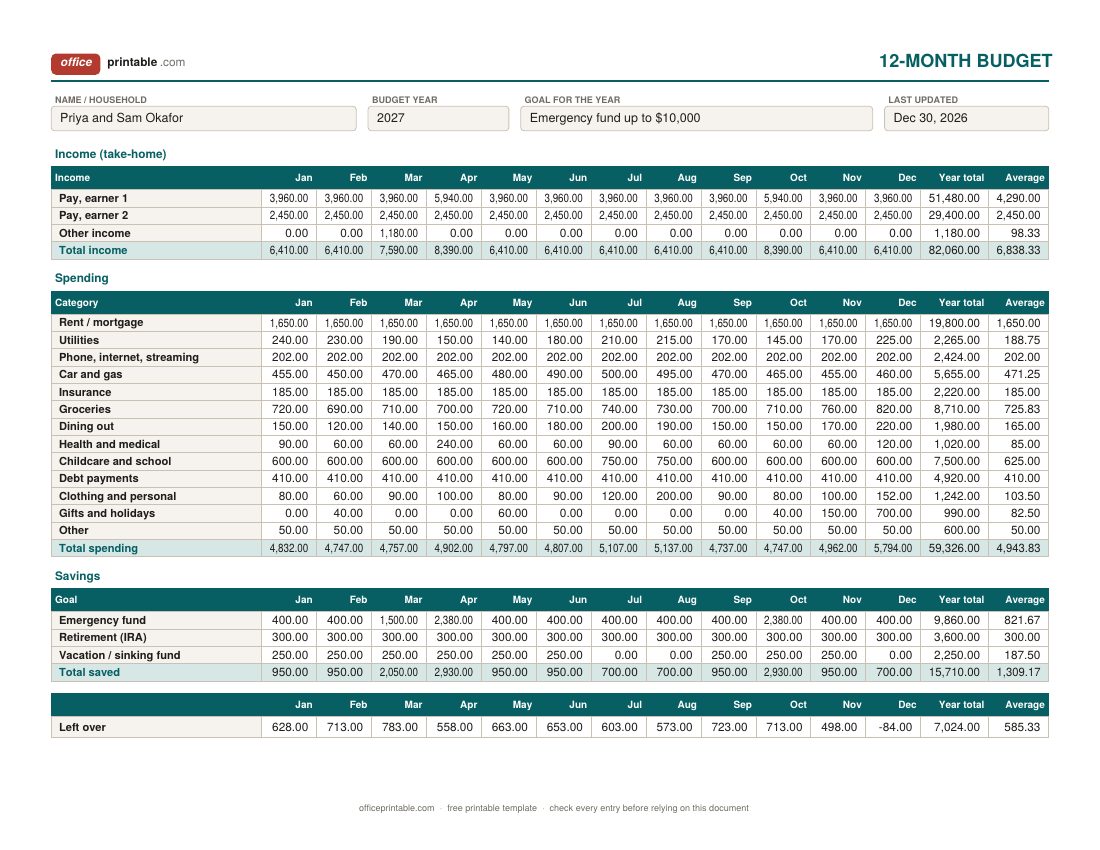
- On the 12-month sheet every row adds up its twelve months and divides by twelve, so irregular costs show their true monthly size.
- Pay date row and Left over so far
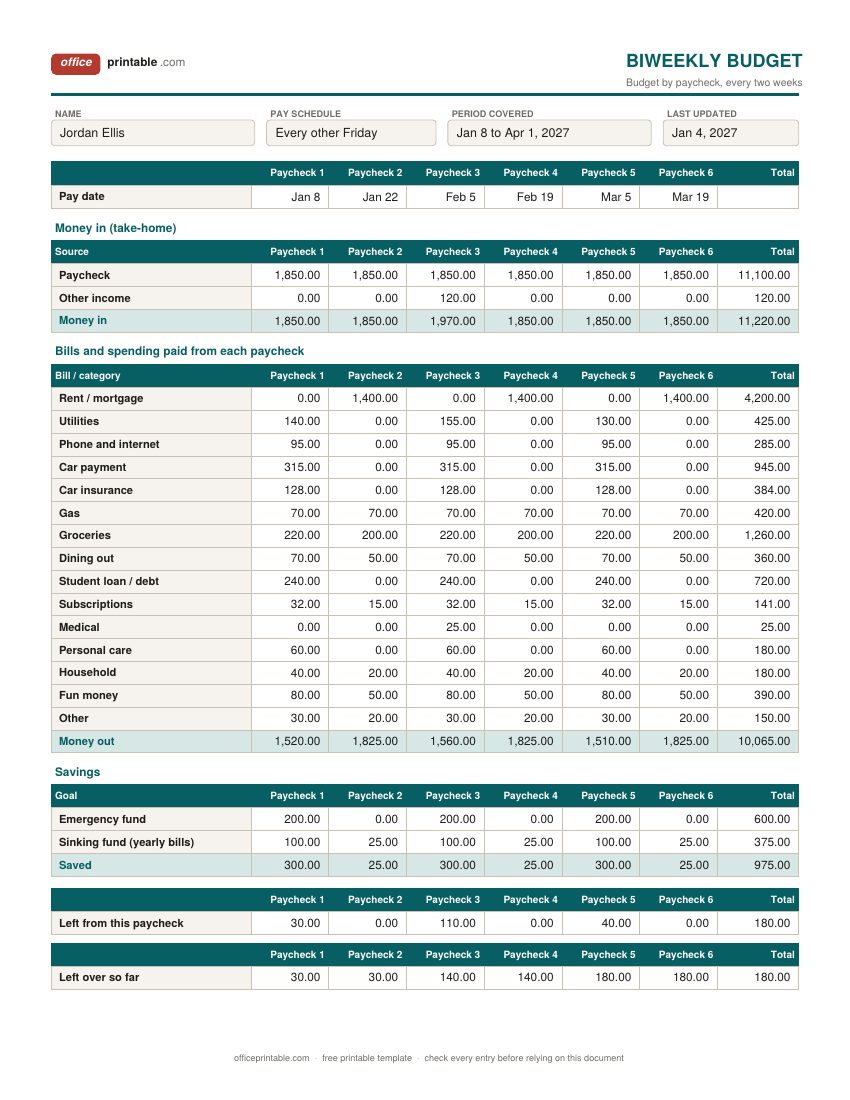
- On the biweekly sheet you write each payday at the top. Excel shows what is left from each check and keeps a running total across the stretch.
The point of a spreadsheet is that you never add a column by hand. You type into the Planned and Actual columns (or the month and paycheck columns) and leave the rest to the formulas. Here is what each one works out:
- Section totals. Income, spending and savings each end in a total row that uses SUM down the column, so the planned, actual and difference totals are always current.
- Difference. Actual minus planned on income and savings, planned minus actual on spending. That way a positive number always means the month went better than the plan, and a negative one points at the line to look at.
- % of income. The actual amount divided by actual total income, times 100, rounded to one place. It stays empty till income is filled in, so a fresh sheet never shows #DIV/0!.
- Left over. Income minus spending minus savings, once for the plan and once for the real month. The savings rate sits under it.
- Yearly total and monthly average on the 12-month sheet, and left from each paycheck plus a running total on the biweekly sheet.
Row formulas stay blank until you type something on that row, so an unused category doesn't clutter the page with zeros.
Using the budget template in Google Sheets
There's no separate Google Sheets copy to click. You make your own from the Excel file in about a minute, and then it's yours to edit, share and open on your phone.
- Download the Excel file (.xlsx) for the design you want.
- Open a blank spreadsheet in Google Sheets and go to File > Import. Choose Upload, pick the file, select Create new spreadsheet and click Import data.
- Or upload the file to Google Drive and double-click it. It opens in Google Sheets. Use File > Save as Google Sheets if you want a true Sheets copy, or keep editing it as an Excel file.
The formulas carry over. They use only SUM, IF, IFERROR, AND, OR, ROUND and N, and Google Sheets has every one of them. Fonts and column widths can shift a little in the import, so give the totals a quick look the first time.
Excel budget template: filling in the monthly sheet
- Start with income. Put the take-home amount of each paycheck in Planned. If your pay changes from month to month, plan on a low recent month and treat anything above it as a bonus.
- Plan each category. Last month's bank and card statements are the quickest source. For groceries and dining out, look at three months; one month can fool you.
- Rename what doesn't fit. Type over any category label. The formulas belong to the row, not the name.
- Plan savings first. Put the emergency fund, retirement and any extra debt payment in as planned amounts rather than hoping something is left.
- Check Planned left over. Below zero means the plan spends more than you earn. Fix it now, before the month starts.
- Fill Actual once a week from your bank app. It takes ten minutes, and the Difference and % of income columns update as you type.
- Save a copy each month with the month in the file name, such as budget-2026-12.xlsx, and start the next month from it.
The % of income column tends to become the one you watch. Rent at 30% of take-home pay or dining out at 4% says more than a dollar amount, and the share still makes sense in a month when income goes up or down.
The 12-month budget: a whole year on one sheet
The wide sheet puts January to December across the page, with income, spending and savings down the side and a yearly total and monthly average on every row. Fill it in as a plan at the start of the year, or type the real figures as each month closes and keep it as a record.
Its best use is spotting the months that are different. Back-to-school costs in August, a car registration in spring, holiday gifts in December, the two months with a third paycheck if you're paid every two weeks. In the filled-in example, the extra paychecks in April and October go straight to the emergency fund, and December dips below zero because gifts and higher grocery bills land at once. Seeing that in January gives you eleven months to set money aside for it.
The Average column is handy for sinking funds. If a cost only shows up a few times a year, its average is the amount to put away every month so the bill never arrives as a surprise.
Biweekly budget: planning by paycheck
If you're paid every two weeks, a monthly budget never quite matches your money. Biweekly pay means 26 paychecks a year, so most months get two and a couple of months get three. Planning paycheck by paycheck fixes that.
The biweekly sheet puts six paychecks side by side, about three months. Write each pay date in the top row, then decide which bills each check covers. Rent due on the 1st usually comes out of the check before it, so in the example rent sits on every second paycheck while the car payment, insurance and student loan sit on the others. Excel shows what is left from each check and a running total, so you can see straight away whether moving a bill to another payday would leave you short.
For one paycheck written out as a list, with due dates and a paid box for each bill, the paycheck budget planner is the better fit. It's a printable checklist, where this sheet is a grid that calculates.
Budget spreadsheet or printable budget?
A spreadsheet suits you if you already check your balance on a screen and want the math done for you. Paper suits people who sit down at the kitchen table with a pen. Plenty of households do both: plan in Excel, then print the page for the fridge. Every design here also comes as a fillable PDF and a Word file that print on one page, though those two don't calculate.
For pen and paper first, the budget template page has simple printable sheets. The monthly budget planner adds zero-based and 50/30/20 layouts, and the household budget worksheet shows yearly household costs and splits shared bills between partners. To make the Actual column honest, log spending as it happens in an expense tracker. The savings goal tracker and debt payoff tracker follow the balances that your savings and debt lines feed.
Tips for keeping a free budget spreadsheet going
- Budget from take-home pay, after tax, insurance and retirement deductions.
- Give yearly and twice-yearly bills a monthly line so they stop wrecking single months.
- Keep a fun money line. Budgets with no room for anything nice tend to get dropped by week three.
- Round to the dollar. Chasing cents makes the weekly update feel like a chore.
Questions
Is there a Google Sheets version of this budget spreadsheet?
Not as a separate link. Download the Excel file and open it in Google Sheets with File > Import, or upload it to Google Drive and open it from there. The formulas keep working because every function they use also exists in Google Sheets.
Does the fillable PDF add up the totals?
No. The PDF and Word files are for typing or writing in and printing, and they leave the totals for you to fill in. Use the Excel file if you want the math done, then print it or save it as a PDF.
How do I add another category?
In Excel, insert a row between two existing rows of that section, type the label, and copy the formula cells (Difference and % of income, or the Year total and Average) down from the row above. The SUM at the bottom of the section takes in the new row by itself.
Why is the % of income column empty?
It waits for income. Once the Actual column of the income section has a number in it, every percentage fills in. Until then it stays blank instead of showing an error.
Which budget spreadsheet should I start with?
Start with the monthly sheet if you're new to budgeting. Move to the 12-month sheet once you want to see the whole year, and use the biweekly sheet if you're paid every two weeks and money gets tight between paydays.
Can I use it on my phone?
Yes. The Excel and Google Sheets apps both open the file and the formulas work there too. The 12-month sheet is wide, so it's easier to fill in on a computer or tablet.
Comments and questions
Have a question about this template, or an idea to make it better? Leave a comment.
Leave a comment